

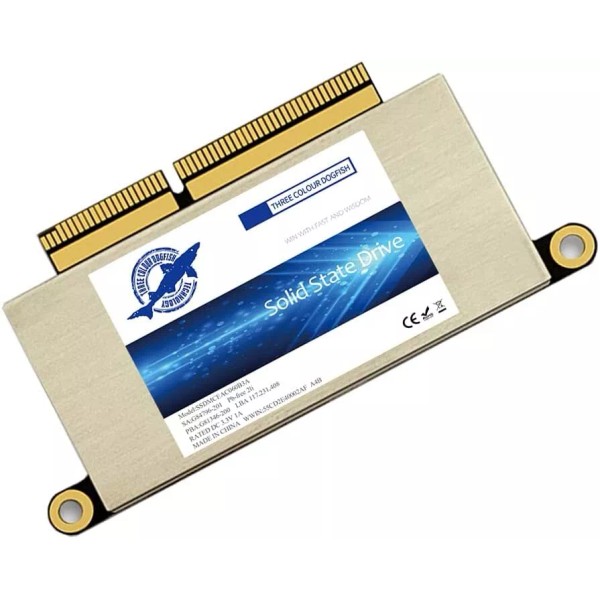







Dogfish 256GB 512GB 1TB SSD Internal Solid State Drive Upgrade for MacBook Pro A1708 Lot - 512GB
$196.80
- Free US shipping
-
Arrives
Update your Macbook with Dogfish NVMe PCIe SSD, No More Storage Limit.
If you have an older Mac and annoying with the slow original drive. You can enjoy the advantages of Dogfish PCIE SSD by upgrading your Mac.
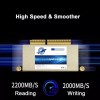
256GB 512GB 1TB for your choice! Read speed is up to 2150MB/s and the sequential write speed is up to 1650MB/s. Faster and more reliable!
IMPORTANT NOTICE:
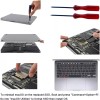
Before moving out original SSD, must upgrade the host MAC to macOS 10.13 High Sierra (or 10.14 Mojave or 10.15 Catalina).
Recently we send some A1708 SSD with MacOS, if you receive this version, the Power-on password is 1234 or 123.
IMPORTANT NOTICE
Before moving out original SSD, must upgrade the host MAC to macOS 10.13 High Sierra (or 10.14 Mojave or 10.15 Catalina).
Why should update OS version on my original SSD before removing?
1.The macOS 10.13 High Sierra, 10.14 Mojave, 10.15 Catalina versions include an EFI firmware update on the motherboard to recognize PCIe 3.0 NVMe SSD.
2.The macOS 10.12 Sierra, Mac OS X or older versions' EFI firmware just only can get original PCIe 2.0 AHCI SSD to work.
3.Firmware version will change as system updates, will stay on motherboard even if SSD is taken off.
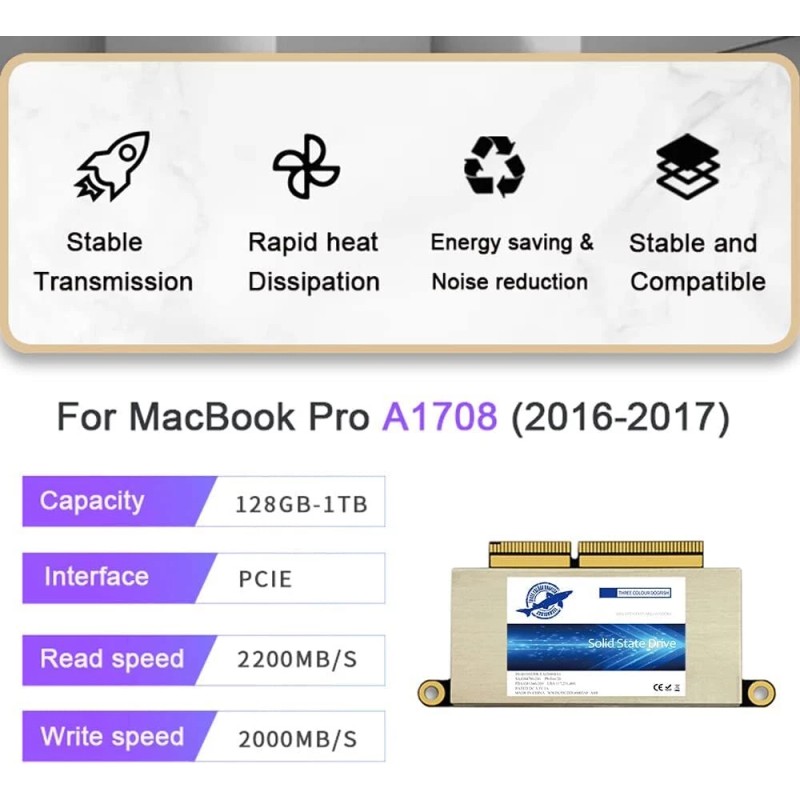
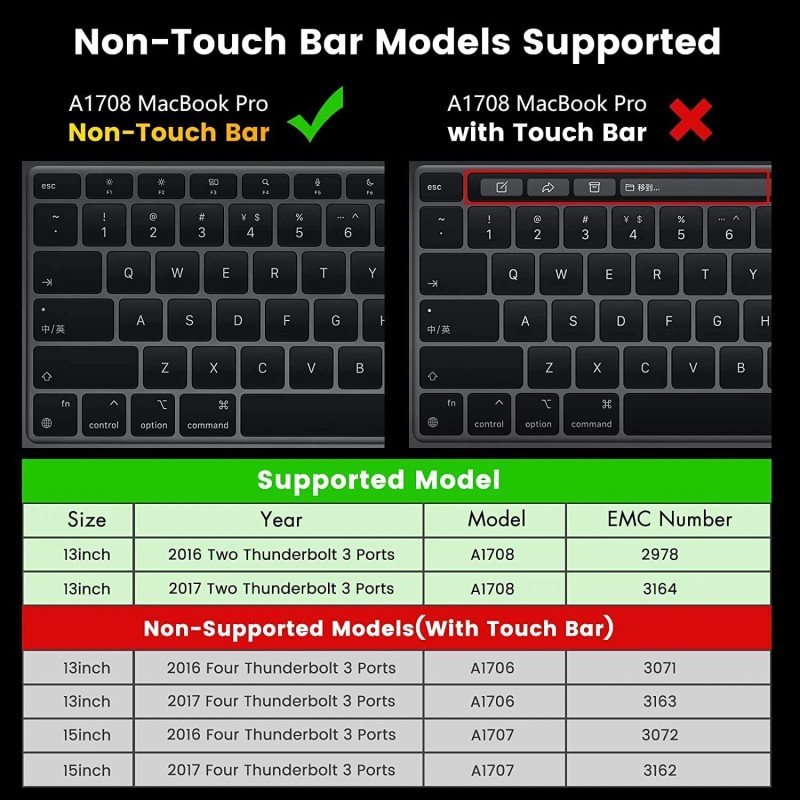
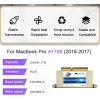
Compatibility With Macbook Pro A1708, Just support Non-touch bar A1708.
Now, 3 ways to format (erase) new SSD and install macOS
Install from Time Machine Backup
1, Make a backup from your Mac to USB drive ( A portable SSD/HDD is better) before installing. Go-Utility-Disk Utility-Erase the USB drive; Open Time Machine, choose the USB drive, automatically backup, start backup (right-up time symbol).
2, Update your original mac ssd to 10.13 or later, then Replace the new SSD to Mac, connect backup USB drive.
3, Boot and press Option during starting, select "backup disk".
4, Select "Disk Utility" from "macOS Utilities", Erase new SSD. Format choose “Mac OS Extended (Journaled)”, Scheme choose “GUIDE Partition Map”.
5, Select "Restore from Time Machine Backup" from "macOS Utilities", follow the steps and waiting for installation.
Create USB Bootable Installer
1, Download macOS 10.13 or later to create a bootable installer into USB drive. (Terminal command, check the method in video or manual)
2, Update your original mac ssd to 10.13 or later, then replace the new SSD to MAC computer.
3, Connect USB Bootable Installer to Mac, start Mac and hold the "Option" key during startup. Select and click "Install macOS xxx".
4, Select "Disk Utility" to format (Erase) SSD from "macOS Utilities".
5, Select "Reinstall macOS" from "macOS Utilities", then follow the prompts to install macOS into new SSD.
Internet Recovery (some mac is too old and not support this method.)
1, Update your original mac ssd to 10.13 or later, then Replace the new SSD to Mac directly .
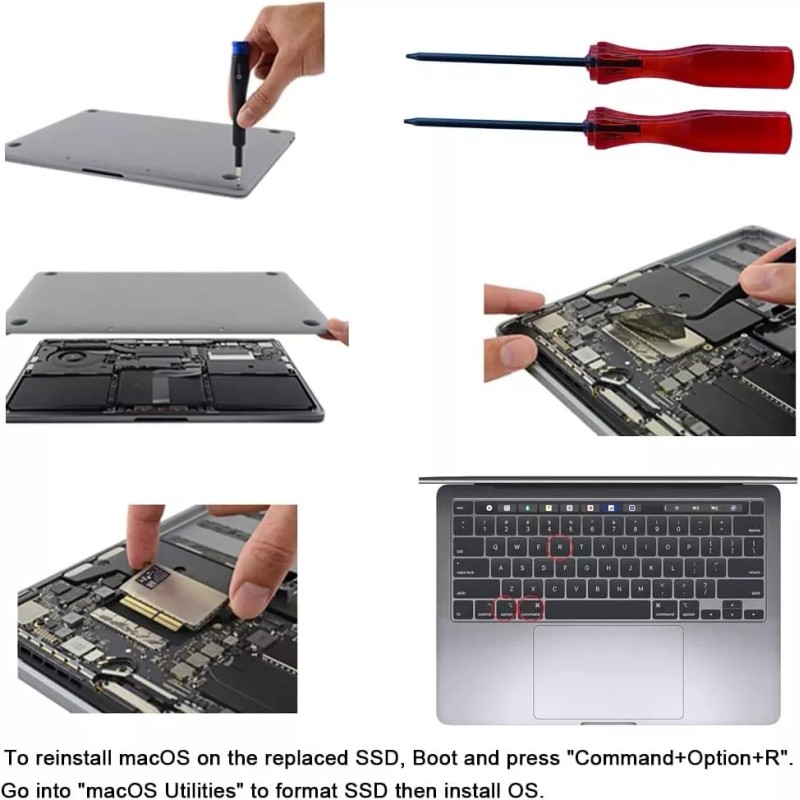
2, Boot and press Option+Command+R, then connect to wifi network. This will ensure the latest OS Utilities version will be loaded.
3, Select "Disk Utility" from "macOS Utilities", Erase new SSD.
4, Select "Reinstall macOS" from "macOS Utilities", follow the steps and waiting for installation.
Why not recommend online installation?
A: As the installed files are relatively large. The progress of the installation will be very slow. Sometime Internet Recovery always go into "Mac OS X Utilities", not "macOS Utilities". Disk Utility" on "Mac OS X Utilities" can not find an unformatted SSD, can't recognize it.
Faster Transfer Speed of NVMe SSD for Macbook
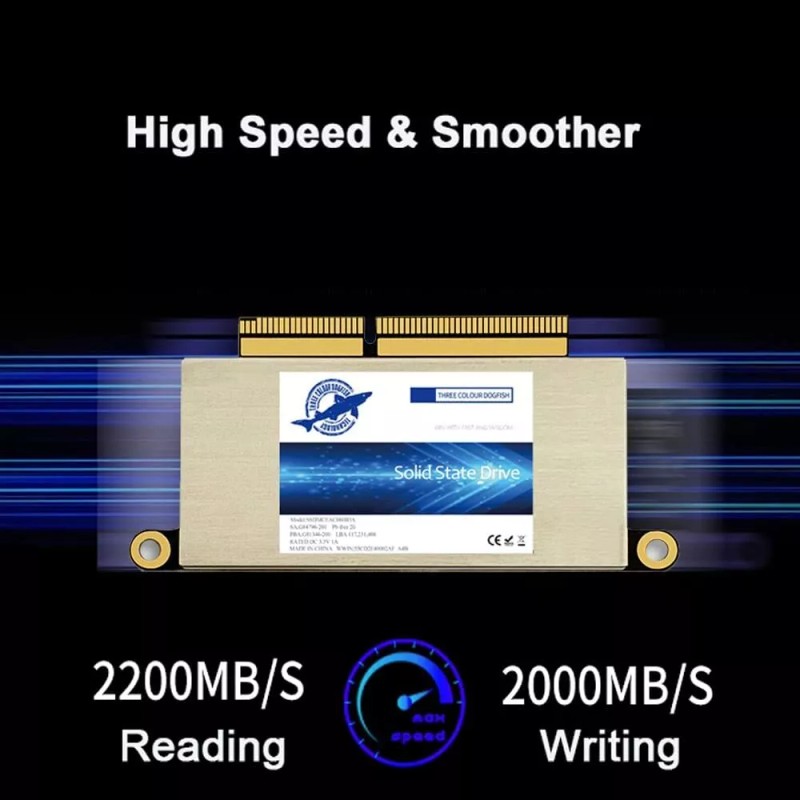
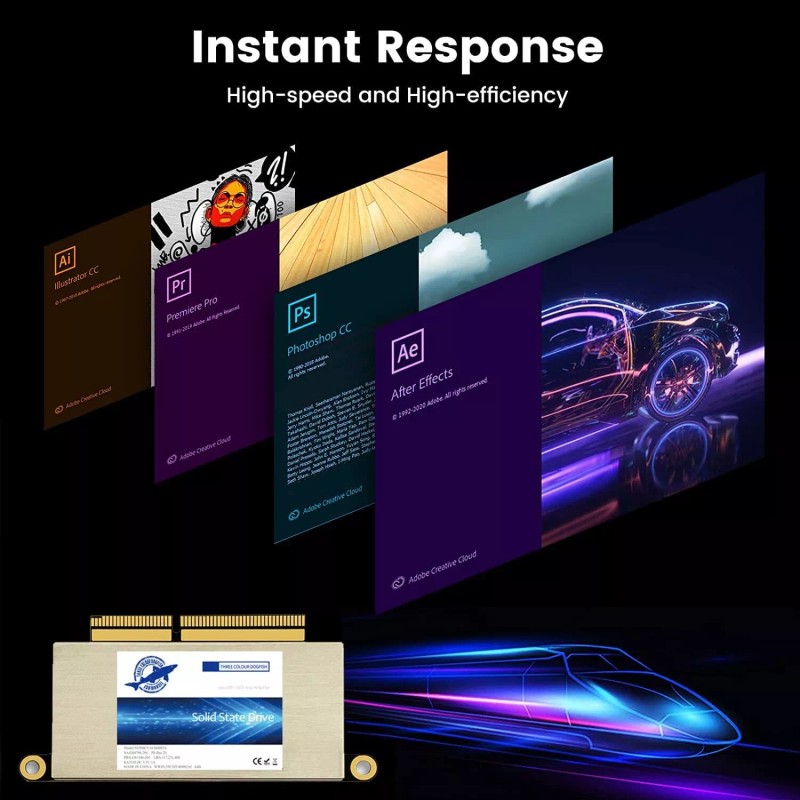
Our Macbook SSD is faster and more reliable. Based on PCIe Gen3*4, The sequential read speed is up to 2150MB/s and the sequential write speed is up to 1650MB/s. This means the programs launch and run more quickly, files are transferred faster, and you can do data-intensive work without worrying that your computer will stall or freeze.
Reliable Performance of NVMe PCIe SSD for Macbook
Support TRIM / S.M.A.R.T / Garbage Collection / LDPC ECC etc, let the nvme ssd has more stable and reliable performance.
Run cooler and less power consumed, extend your Mac life.
Less prone to damage due to shock and vibration without moving parts.
Adopt non volatile storage technology that doesn’t require power to retain data.
Don’t make any noise at all.
Dogfish SSD makes you enjoying your computer!
Interface: PCIe NVMe Gen3*4
Control chip: Silicon Motion
Flash Type: 3D TLC NAND Flash
MTBF: 1 million hours
Sequential Read Speed: 2200MB/s (1TB), 1800MB/s (512GB), 1700MB/s (256GB).
Sequential Write Speed: 1600MB/s (1TB), 1400MB/s (512GB), 1200MB/s (256GB).
(The read/write speed is related to the performance of the device and may be lower than the above values.)
Data retention: >20years @ 25°C
Storage temperature: -45~85 °C
Operation temperature: -0~70°C
Power Supply: 3.3V±5%
Support OS version: macOS 10.13+ or later
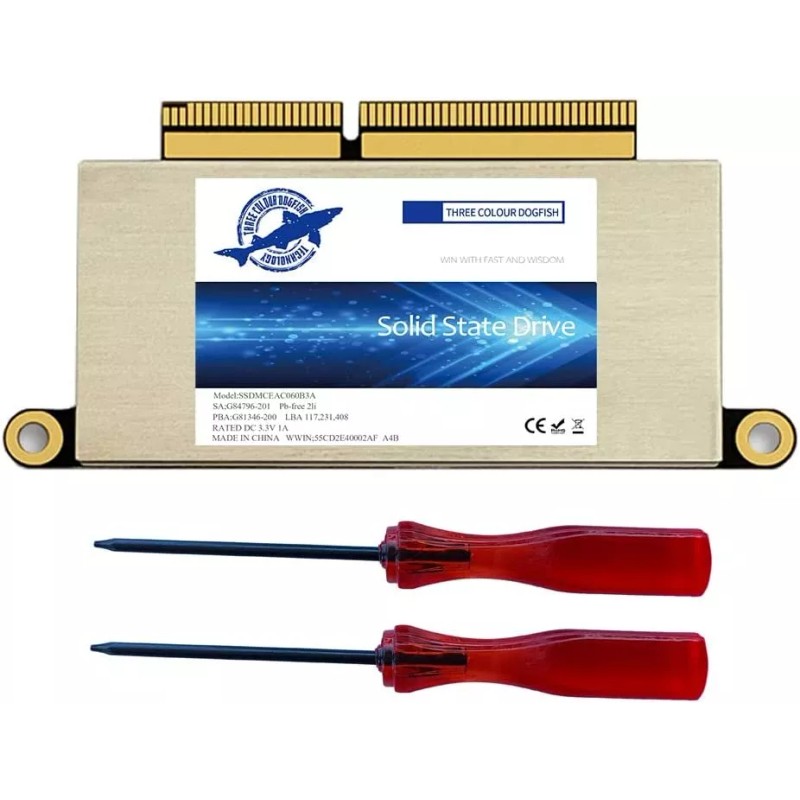
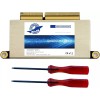
Item packaging includes: 1*SSD, 2*screwdrivers for MacBook & SSD.
- Free 30-Day Returns
- Full Refund for Damaged or Incorrect Items
- Guaranteed Delivery or Money Back
- Secure Checkout & Fast Support

Update your Macbook with Dogfish NVMe PCIe SSD, No More Storage Limit.
If you have an older Mac and annoying with the slow original drive. You can enjoy the advantages of Dogfish PCIE SSD by upgrading your Mac.
256GB 512GB 1TB for your choice! Read speed is up to 2150MB/s and the sequential write speed is up to 1650MB/s. Faster and more reliable!
IMPORTANT NOTICE:
Before moving out original SSD, must upgrade the host MAC to macOS 10.13 High Sierra (or 10.14 Mojave or 10.15 Catalina).
Recently we send some A1708 SSD with MacOS, if you receive this version, the Power-on password is 1234 or 123.
IMPORTANT NOTICE
Before moving out original SSD, must upgrade the host MAC to macOS 10.13 High Sierra (or 10.14 Mojave or 10.15 Catalina).
Why should update OS version on my original SSD before removing?
1.The macOS 10.13 High Sierra, 10.14 Mojave, 10.15 Catalina versions include an EFI firmware update on the motherboard to recognize PCIe 3.0 NVMe SSD.
2.The macOS 10.12 Sierra, Mac OS X or older versions' EFI firmware just only can get original PCIe 2.0 AHCI SSD to work.
3.Firmware version will change as system updates, will stay on motherboard even if SSD is taken off.
Compatibility With Macbook Pro A1708, Just support Non-touch bar A1708.
Now, 3 ways to format (erase) new SSD and install macOS
Install from Time Machine Backup
1, Make a backup from your Mac to USB drive ( A portable SSD/HDD is better) before installing. Go-Utility-Disk Utility-Erase the USB drive; Open Time Machine, choose the USB drive, automatically backup, start backup (right-up time symbol).
2, Update your original mac ssd to 10.13 or later, then Replace the new SSD to Mac, connect backup USB drive.
3, Boot and press Option during starting, select "backup disk".
4, Select "Disk Utility" from "macOS Utilities", Erase new SSD. Format choose “Mac OS Extended (Journaled)”, Scheme choose “GUIDE Partition Map”.
5, Select "Restore from Time Machine Backup" from "macOS Utilities", follow the steps and waiting for installation.
Create USB Bootable Installer
1, Download macOS 10.13 or later to create a bootable installer into USB drive. (Terminal command, check the method in video or manual)
2, Update your original mac ssd to 10.13 or later, then replace the new SSD to MAC computer.
3, Connect USB Bootable Installer to Mac, start Mac and hold the "Option" key during startup. Select and click "Install macOS xxx".
4, Select "Disk Utility" to format (Erase) SSD from "macOS Utilities".
5, Select "Reinstall macOS" from "macOS Utilities", then follow the prompts to install macOS into new SSD.
Internet Recovery (some mac is too old and not support this method.)
1, Update your original mac ssd to 10.13 or later, then Replace the new SSD to Mac directly .
2, Boot and press Option+Command+R, then connect to wifi network. This will ensure the latest OS Utilities version will be loaded.
3, Select "Disk Utility" from "macOS Utilities", Erase new SSD.
4, Select "Reinstall macOS" from "macOS Utilities", follow the steps and waiting for installation.
Why not recommend online installation?
A: As the installed files are relatively large. The progress of the installation will be very slow. Sometime Internet Recovery always go into "Mac OS X Utilities", not "macOS Utilities". Disk Utility" on "Mac OS X Utilities" can not find an unformatted SSD, can't recognize it.
Faster Transfer Speed of NVMe SSD for Macbook
Our Macbook SSD is faster and more reliable. Based on PCIe Gen3*4, The sequential read speed is up to 2150MB/s and the sequential write speed is up to 1650MB/s. This means the programs launch and run more quickly, files are transferred faster, and you can do data-intensive work without worrying that your computer will stall or freeze.
Reliable Performance of NVMe PCIe SSD for Macbook
Support TRIM / S.M.A.R.T / Garbage Collection / LDPC ECC etc, let the nvme ssd has more stable and reliable performance.
Run cooler and less power consumed, extend your Mac life.
Less prone to damage due to shock and vibration without moving parts.
Adopt non volatile storage technology that doesn’t require power to retain data.
Don’t make any noise at all.
Dogfish SSD makes you enjoying your computer!
Interface: PCIe NVMe Gen3*4
Control chip: Silicon Motion
Flash Type: 3D TLC NAND Flash
MTBF: 1 million hours
Sequential Read Speed: 2200MB/s (1TB), 1800MB/s (512GB), 1700MB/s (256GB).
Sequential Write Speed: 1600MB/s (1TB), 1400MB/s (512GB), 1200MB/s (256GB).
(The read/write speed is related to the performance of the device and may be lower than the above values.)
Data retention: >20years @ 25°C
Storage temperature: -45~85 °C
Operation temperature: -0~70°C
Power Supply: 3.3V±5%
Support OS version: macOS 10.13+ or later
Item packaging includes: 1*SSD, 2*screwdrivers for MacBook & SSD.

Update your Macbook with Dogfish NVMe PCIe SSD, No More Storage Limit.
If you have an older Mac and annoying with the slow original drive. You can enjoy the advantages of Dogfish PCIE SSD by upgrading your Mac.
256GB 512GB 1TB for your choice! Read speed is up to 2150MB/s and the sequential write speed is up to 1650MB/s. Faster and more reliable!
IMPORTANT NOTICE:
Before moving out original SSD, must upgrade the host MAC to macOS 10.13 High Sierra (or 10.14 Mojave or 10.15 Catalina).
Recently we send some A1708 SSD with MacOS, if you receive this version, the Power-on password is 1234 or 123.

IMPORTANT NOTICE
Before moving out original SSD, must upgrade the host MAC to macOS 10.13 High Sierra (or 10.14 Mojave or 10.15 Catalina).
Why should update OS version on my original SSD before removing?
1.The macOS 10.13 High Sierra, 10.14 Mojave, 10.15 Catalina versions include an EFI firmware update on the motherboard to recognize PCIe 3.0 NVMe SSD.
2.The macOS 10.12 Sierra, Mac OS X or older versions' EFI firmware just only can get original PCIe 2.0 AHCI SSD to work.
3.Firmware version will change as system updates, will stay on motherboard even if SSD is taken off.

Compatibility With Macbook Pro A1708, Just support Non-touch bar A1708.
Now, 3 ways to format (erase) new SSD and install macOS
Install from Time Machine Backup
1, Make a backup from your Mac to USB drive ( A portable SSD/HDD is better) before installing. Go-Utility-Disk Utility-Erase the USB drive; Open Time Machine, choose the USB drive, automatically backup, start backup (right-up time symbol).
2, Update your original mac ssd to 10.13 or later, then Replace the new SSD to Mac, connect backup USB drive.
3, Boot and press Option during starting, select "backup disk".
4, Select "Disk Utility" from "macOS Utilities", Erase new SSD. Format choose “Mac OS Extended (Journaled)”, Scheme choose “GUIDE Partition Map”.
5, Select "Restore from Time Machine Backup" from "macOS Utilities", follow the steps and waiting for installation.
Create USB Bootable Installer
1, Download macOS 10.13 or later to create a bootable installer into USB drive. (Terminal command, check the method in video or manual)
2, Update your original mac ssd to 10.13 or later, then replace the new SSD to MAC computer.
3, Connect USB Bootable Installer to Mac, start Mac and hold the "Option" key during startup. Select and click "Install macOS xxx".
4, Select "Disk Utility" to format (Erase) SSD from "macOS Utilities".
5, Select "Reinstall macOS" from "macOS Utilities", then follow the prompts to install macOS into new SSD.

Internet Recovery (some mac is too old and not support this method.)
1, Update your original mac ssd to 10.13 or later, then Replace the new SSD to Mac directly .
2, Boot and press Option+Command+R, then connect to wifi network. This will ensure the latest OS Utilities version will be loaded.
3, Select "Disk Utility" from "macOS Utilities", Erase new SSD.
4, Select "Reinstall macOS" from "macOS Utilities", follow the steps and waiting for installation.
Why not recommend online installation?
A: As the installed files are relatively large. The progress of the installation will be very slow. Sometime Internet Recovery always go into "Mac OS X Utilities", not "macOS Utilities". Disk Utility" on "Mac OS X Utilities" can not find an unformatted SSD, can't recognize it.
Faster Transfer Speed of NVMe SSD for Macbook
Our Macbook SSD is faster and more reliable. Based on PCIe Gen3*4, The sequential read speed is up to 2150MB/s and the sequential write speed is up to 1650MB/s. This means the programs launch and run more quickly, files are transferred faster, and you can do data-intensive work without worrying that your computer will stall or freeze.

Reliable Performance of NVMe PCIe SSD for Macbook
Support TRIM / S.M.A.R.T / Garbage Collection / LDPC ECC etc, let the nvme ssd has more stable and reliable performance.
Run cooler and less power consumed, extend your Mac life.
Less prone to damage due to shock and vibration without moving parts.
Adopt non volatile storage technology that doesn’t require power to retain data.
Don’t make any noise at all.

Dogfish SSD makes you enjoying your computer!
Interface: PCIe NVMe Gen3*4
Control chip: Silicon Motion
Flash Type: 3D TLC NAND Flash
MTBF: 1 million hours
Sequential Read Speed: 2200MB/s (1TB), 1800MB/s (512GB), 1700MB/s (256GB).
Sequential Write Speed: 1600MB/s (1TB), 1400MB/s (512GB), 1200MB/s (256GB).
(The read/write speed is related to the performance of the device and may be lower than the above values.)
Data retention: >20years @ 25°C
Storage temperature: -45~85 °C
Operation temperature: -0~70°C
Power Supply: 3.3V±5%
Support OS version: macOS 10.13+ or later
Item packaging includes: 1*SSD, 2*screwdrivers for MacBook & SSD.
- Brand: Dogfish
- Compatible With: Mac
- Form Factor: MACBOOK M.2 SSD
- Type: Internal SSD
- Drive Type(s) Supported: SSD (Solid State Drive)
- Color: White
- Features: Adaptive Memory Technology, Low Noise Level, Shock Resistant
- Interface: M.2, NVME, PCI Express
Processing Time
- We process and ship orders Monday through Friday, excluding holidays.
- Most orders are processed within 1–3 business days, depending on product availability.
- Processing time does not include delivery time, which varies based on your location and the product’s shipping origin.
Shipping Coverage
We currently ship to addresses within the United States only.
Products may ship from:
- Our U.S. warehouses, or
- Our international fulfillment centers (including Korea, Japan, China, Australia, Mexico, Canada, the United Kingdom, and the EU).
Each product page clearly displays the “Ships From” location before checkout.
Shipping Methods & Estimated Delivery
| Shipping Method | Estimated Delivery | Cost |
|---|---|---|
| Free Shipping (US) | 5–10 business days | Free, available on eligible items |
| Standard Shipping (US to US by Item) | 5–10 business days | $5.95 for the first item, $3.00 each additional |
| Standard Shipping (From US Warehouse by Weight) | 3–7 business days | Starts at $5.95, increasing by $2 for every additional 4 oz (0.25 lb) up to 1 lb, then by $4 for each additional pound beyond 1 lb. |
| Extended Delivery (Ships from Overseas Warehouse) | 10–20 business days | $14.50 for the first item, $2.00 each additional |
Shipping costs vary by product weight, quantity and origin. Exact rates and delivery estimates are displayed on each product page and confirmed during checkout.
Free Shipping
We offer free standard shipping on select products or during promotional periods. Availability of free shipping will be displayed on the product page and at checkout.
Carriers
We primarily use USPS and UPS for U.S. deliveries. Items shipped from international warehouses may be handled by partner carriers depending on the country of origin.
Import Duties & Taxes
All import duties and taxes for goods imported into the United States are included in the product price. There are no hidden fees or additional charges at checkout.
Tracking & Notifications
Every order is fully trackable. You will receive a tracking number via email once your order ships. If your order ships in multiple packages, each package will have its own tracking number. If you don’t receive a shipping confirmation immediately, your order is still being processed and will arrive within the estimated timeframe shown at checkout.
You can track your shipment anytime using the Track Your Order page on our website.
Order Changes & Cancellations
If you need to modify or cancel an order, please contact our customer support team as soon as possible. Orders can only be canceled before they ship. Once shipped, cancellations are not possible, but you may request a return after the item is delivered.
Contact: support@ibspot.com
Item Not Received
If your tracking number shows “Delivered” but you haven’t received your package:
- Check with your local USPS or UPS office.
- Confirm that the shipping address provided was correct.
- If the issue remains unresolved, contact support@ibspot.com for assistance.
Damaged or Lost Parcels
If your package arrives damaged or fails to arrive, please contact us immediately. For deliveries to P.O. boxes, ibspot is not responsible for damage caused by weather, temperature, or theft.
Customer Support
For any questions about shipping, tracking, or delivery, our customer support team is here to help.
Email: support@ibspot.com
We’re always happy to help.
Please read our policy carefully before making a purchase.
We aim to ensure every customer has a smooth and transparent experience with ibspot.com.
Order Cancellation Policy
Customers may request to cancel an order before it has been shipped.
Once the package has been shipped, cancellations are no longer possible; however, you may still request a return after receiving your order.
How to Request a Cancellation
You can contact us through:
- Email: support@ibspot.com
- Contact Form: Submit a request through our Contact Us page
Please submit your cancellation request as soon as possible after placing the order to allow us to process it before shipment.
Return Policy
We accept returns for most items within 30 days of delivery for a full refund.
To be eligible for a return:
- The item must be unused, in the same condition as received, and in its original packaging.
- A tracking number must be provided to confirm the return shipment.
Non-Returnable Items
Certain products cannot be returned, including:
- Perishable goods (for example, food, flowers, newspapers, magazines)
- Intimate or sanitary goods
- Hazardous materials or flammable liquids/gases
- Gift cards
- Downloadable software
- Some health and personal care items
Partial Refunds (If Applicable)
Partial refunds may be granted in specific situations, such as:
- Books with obvious signs of use
- Opened CDs, DVDs, software, or vinyl records
- Items not in their original condition, damaged, or missing parts not due to our error
- Items returned more than 30 days after delivery
How to Return an Item
To initiate a return, please contact us at support@ibspot.com with your order number and details about the product you wish to return.
Our team will provide you with return instructions and a prepaid return label.
Shipping Cost for Returns
Please contact us before returning any item.
We will provide a free return shipping label.
If a return is sent back without prior contact or without our provided label, we cannot be held responsible for return shipping costs.
For items valued over $75, we recommend using a trackable shipping service or purchasing shipping insurance.
We cannot guarantee that we will receive your returned item if shipped independently.
Refund Processing
Once your return is received and inspected:
- In-store returns are refunded to the original form of payment or issued as a gift card.
- Mail-in returns using our prepaid label are refunded to the original payment method within 3–5 business days after we receive your return.
Please allow:
- 5–7 business days for the return to reach our Returns Center.
- An additional 3–10 business days for your bank to post the refund to your account.
Damages, Issues & Claims
Please inspect your order immediately upon receipt.
If you receive a defective, damaged, or incorrect item, contact us right away at support@ibspot.com.
We’ll evaluate the issue promptly and make it right.
Product Claims
Before purchasing, please review product details carefully.
If there is a problem with your order upon arrival, visit our Support Center or contact us directly to arrange return shipping or replacement.
Exchanges
We do not process direct exchanges.
The fastest way to get what you need is to return the original item and place a new order once your return is accepted.
Return Address
IBSPOT Return Center
15 Sawmill Ln
Dover Plains, NY 12522
United States
Customer Support
Our support team is available 24/7 to assist with cancellations, returns, or general inquiries.
Email: support@ibspot.com
Contact Form: Contact Us page
Oops!
Sorry, it looks like some products are not available in selected quantity.